
Converting HEIC files to JPG format (using PixPix)
Batch conversion of Apple Photos
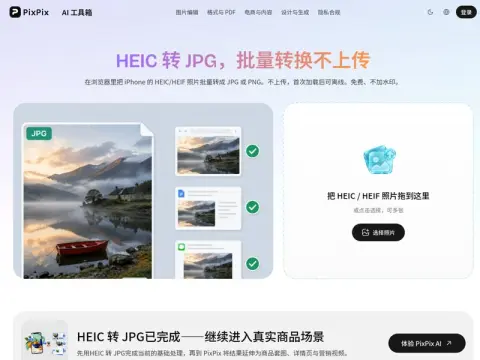
Introduction
What is HEIC?
Since iOS 11, Apple has adopted a default photo format based on HEVC encoding. At the same image quality, the size of these files is approximately half that of JPG files. This format saves storage space, but its support is limited.
Why can't many software programs be opened?
Many Windows applications, older versions of office software, and certain upload controls on websites only accept JPG and PNG files. When encountering HEIC files, these systems either display an error message or simply fail to recognize them at all. It’s very common for such files not to open when you try to double-click on them; this is not due to any damage to the file itself.
Into which format should it be converted?
For daily sharing, posting on websites, or transferring files to office software, JPG format is the best choice as it offers good compatibility and occupies less space. If you need to preserve the image quality without any loss or continue editing the file after conversion, PNG is more suitable. Most people fall into the first category. You can drag entire albums into the conversion tool at once for batch processing. After completion, you can compress the files into a ZIP archive. Even if you disconnect from the internet after loading the page, you can still use the converted files.
What could possibly be lost?
The depth maps, the video portions of live photos, and some HDR metadata contained in HEIC format may not be fully preserved when converted to JPG format. Make sure to keep a copy of the original file after converting important photographs.
Related