Image size adjustment (PixPix)
Precise scaling without distortion
Introduction
Let me first dispel a common misconception: using such tools to enlarge images does not make them clearer. When the original pixels are stretched, the resulting image will only appear softer and more blurred. If you need to enlarge an image several times for printing or displaying on a large screen, you should use high-resolution tools, rather than simply adjusting its size.
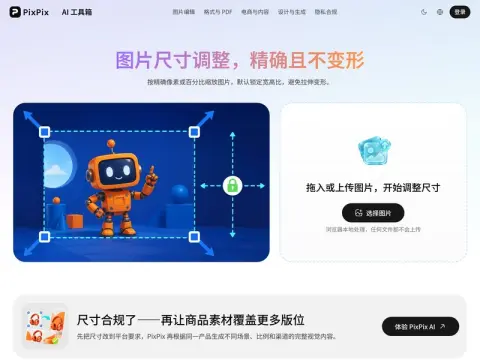
Its purpose is to resize an image to its appropriate dimensions. You can specify the target width and height in pixels, or use a percentage-based scaling method. The aspect ratio remains fixed by default; adjusting one dimension will automatically calculate the other. If you want to unlock this restriction, you need to do so manually. This design ensures that the most common mistakes related to image distortion are intentionally prevented from happening. During the scaling process, high-quality resampling is used, so that text edges and product outlines do not become blurred. The final output will attempt to maintain the original format as much as possible.
There is also an issue regarding the aspect ratio: the original image has a 4:3 ratio, while the target format requires a 16:9 ratio. Simply adjusting the size will inevitably cause distortion; therefore, it is necessary to first crop the image to a 16:9 ratio before reducing its size. Skipping this cropping step and then blaming the tool for the resulting distortion is a very common misunderstanding.
Related