immersive translation
Immersive Translation is a translation tool/browser extension that focuses on bilingual parallel reading. It emphasizes the experience of “displaying the translated text directly within the context of the original text” (while preserving the contextual context at the paragraph level), and it supports translation in various content formats such as PDF, EPUB, and video subtitles. The bilingual feature of Immersive Translation allows users to...
Introduction
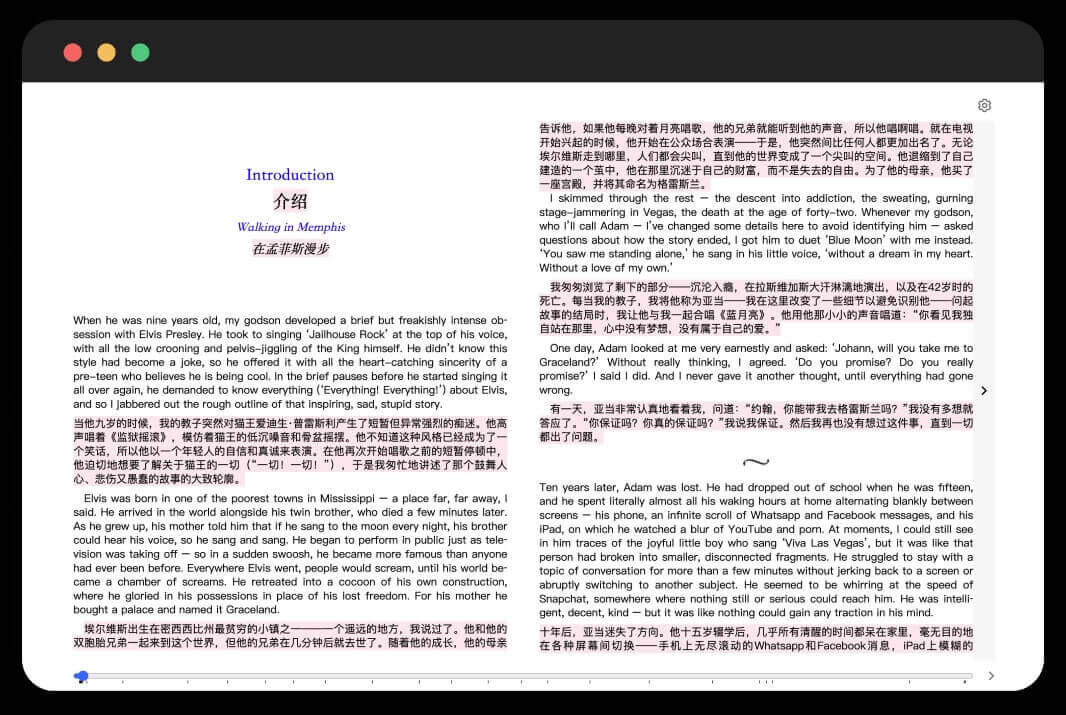
Immersive translation is a feature that stands out in this product.Bilingual parallel readingTranslation tools/browser extensions that focus on providing the experience of “displaying the translated text directly within the context of the original text” (while preserving the contextual structure at the paragraph level), and that support translation in various content formats such as PDF, EPUB, and video subtitles.
Immersive bilingual parallel translationRather than simply and crudely replacing the original text, the original version and the translation are presented in a comparative manner.This allows you to understand the content while inadvertently learning a foreign language in the process.

Main functions
The features of immersive translation cover a wide range of scenarios in which we come into contact with foreign language information on a daily basis, making it truly comprehensive.
- Web page translationIntelligent identification of the main content area on web pages (automatically filtering out advertisements, navigation bars, and other distracting elements), providing convenient functionality.Parallel bilingual parallel translationIt supports a variety of translation engines, allowing you to use them seamlessly while reading news, technical documents, or on social media.
- Translation of PDF/EPUB documentsYou can directly upload a local PDF or e-book file, or open the PDF online to generate the required content.Bilingual document with the original layout format preservedReading academic papers and foreign-language books becomes much more efficient. After translation, the content can even be downloaded and saved for offline reading.
- Video subtitle translationSupports being used in...More than 60 major video platforms, including YouTube and NetflixProvided aboveReal-time bilingual subtitles8. This feature enables you to easily understand the content while watching dramas or following tutorials.
- ?️ Hover the mouse over the text for translationOn a web page, you can hover your mouse over a piece of text and then press the Shift key to achieve this.The translation of this paragraph is displayed immediately.It allows for flexible and convenient use, without the need to translate the entire page.
- Input box translationEnter text in the input fields of any web page (such as the Google search bar or the GPT dialogue box), and then quickly press the spacebar several times. That’s it.Translate the text into the target language.This enables you to communicate in multiple languages on social media with ease.
- ?️ Image translationIt supports the translation of text contained within images on web pages. This can be achieved through…OCR (Optical Character Recognition) technologyIdentify the text in an image and translate it; it’s even possible to utilize this functionality.The inpaint technology strives to restore the original visual design of the image as accurately as possible.
Whether it's translating web pages or PDF documents, it can do it all.Maximize the preservation of the original formatting and layout.There will be no confusion, and the reading experience will be excellent.
Usage Guide
Immersive translation is extremely easy to use.
- Install the plugin.Search for it in the app stores of browsers such as Chrome, Edge, and Firefox.immersive translation"Or 'Immersive Translate', find it and click to install it."
- basic translationAfter installation, the plugin icon will appear in the browser toolbar. When you visit any foreign-language website, simply click on this icon and then select “Translate” to enable the translation function.One-click bilingual translationYou can also click on the option that appears on the right side of the page.floating ballLet’s do a quick translation.
- shortcut key operationsBy default, use Alt+A to translate or switch between the original text, and Alt+W to translate the entire page. You can adjust these shortcuts according to your preferences in the “Key Shortcut Management” settings section.
- Translate PDF/e-books: Click the plugin icon in the upper right corner of your browser and select "moreSelect the option, and then click "Translate local PDF files"or"Reading e-booksJust upload your file. That’s it.
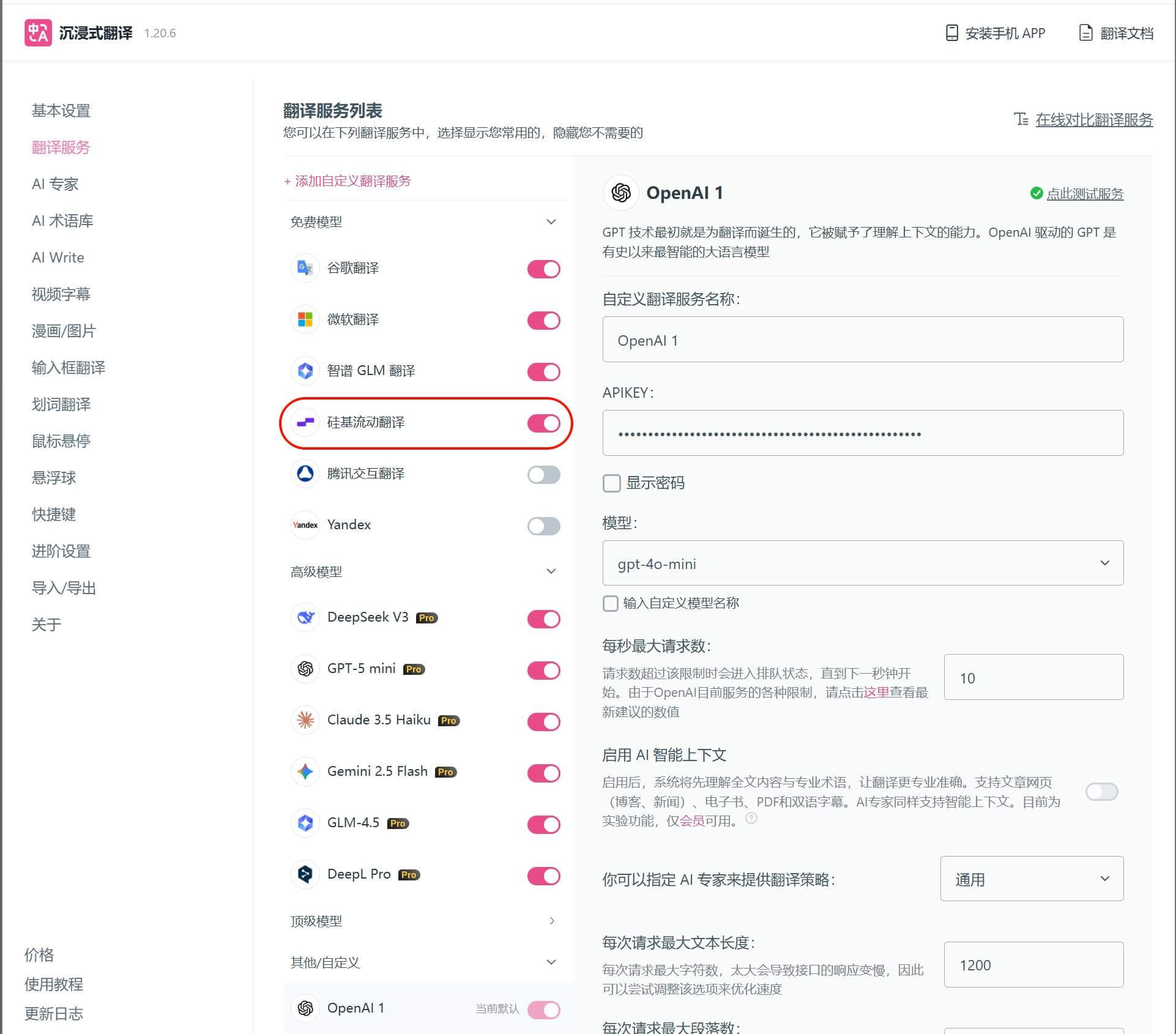
- Advanced Settings (Access to AI Translation Engine)If you want to use more powerful tools like DeepL or OpenAI for translation:
- Click the plugin icon to enter…setting”。
- Find it.Translation servicesThis option allows you to add a custom AI translation service.
- Enter the information you obtained from the respective service provider.API keyTogether with the request URL.
- After saving it, you can select this engine as the default option when performing translations.
The translation function doesn’t require a particularly advanced AI model. You can simply apply for the cheapest one available. If you want to use it for free, you can apply for the Silicon-based Flow API; registration comes with a bonus of 14 yuan, and there are also free models available.
Related