Converting PDF files to images (PixPix)
Export PNG/JPG files page by page.
Introduction
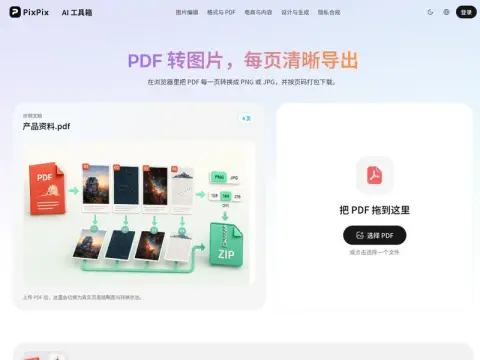
Use Mozilla’s pdf.js to render the pages one by one and output the result in PNG or JPG format. The page numbers will be automatically padded with zeros, so page 10 will not appear before page 2. Multiple pages can be packaged into a ZIP file, and the file name should include both the original document title and the page number. There are three available resolution options: approximately 108 dpi for screen use, approximately 144 dpi for high-definition displays, and approximately 216 dpi for printing purposes. The higher the resolution setting, the slower the processing speed and the larger the resulting file size will be.
The positive aspects include the attention paid to details: the real-time thumbnail on the left, the ability to download pages individually, and the standardized naming convention for files. These are precisely the areas that many similar tools tend to neglect. For pages containing a lot of text or tables, using PNG format results in sharper edges; for pages with numerous photos, JPG is a better choice since it reduces file size. However, it’s important to note that JPG format will fill any transparent areas with white color.
The consequences are also clear: once a text is converted into an image, it can no longer be selected or searched. Therefore, do not convert text in situations where searchability is essential. Additionally, password-protected files and damaged files cannot be read after conversion.
It is ideal for sharing PDF content via WeChat, embedding it in PPT presentations, or including it on web pages – in situations where recipients may not necessarily open the attached files.
Related