Generation of scrolling video for novels
This tool arranges the entire novel into a continuous stream of text, allowing it to scroll smoothly from bottom to top on a vertical screen – much like the subtitles at the end of a movie. The formatting, previewing, exporting, and saving of the project are all done locally within your browser; neither the main text nor any media files will be uploaded to any server.
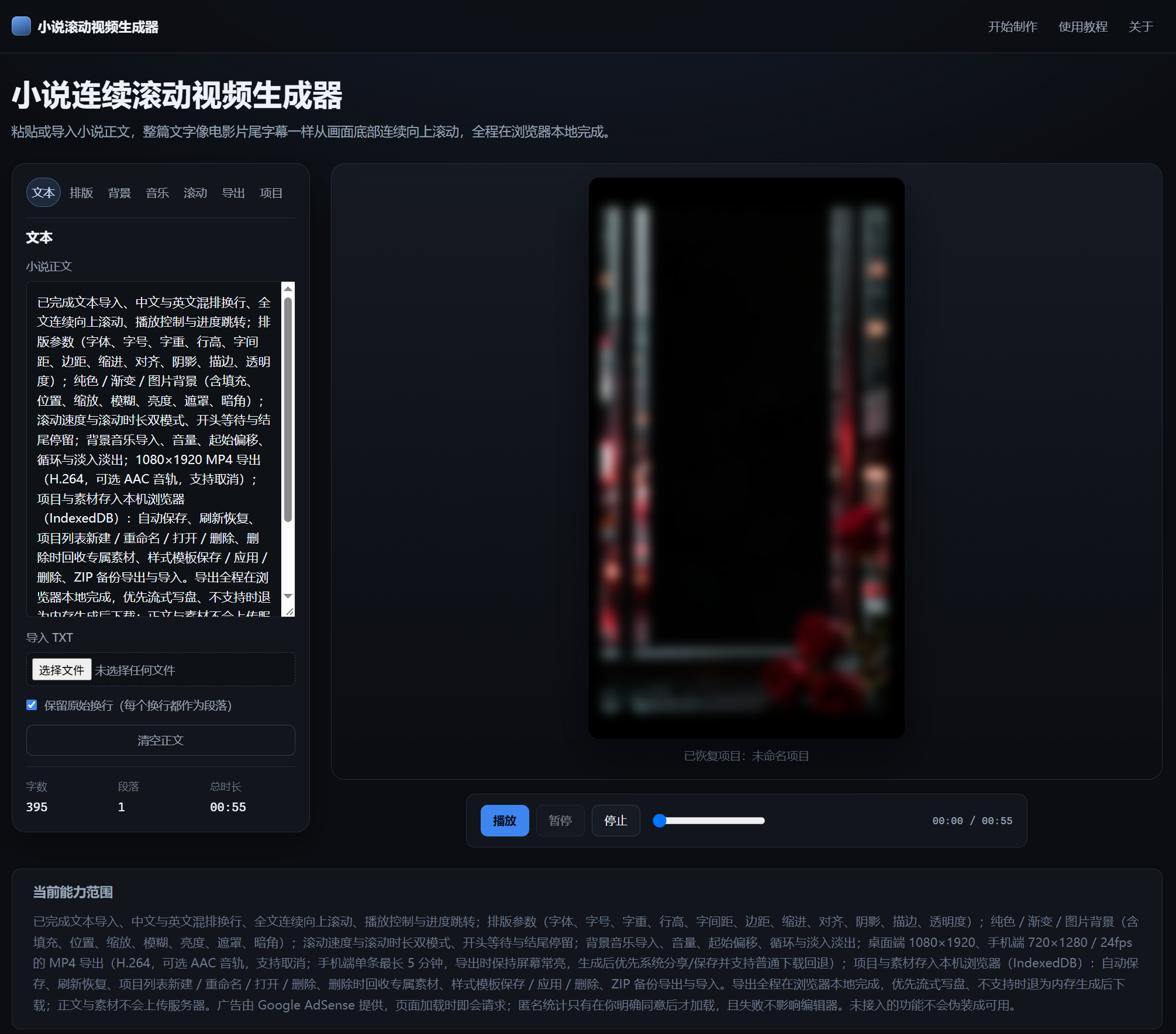
Introduction
This tool arranges the entire novel into a continuous text stream, allowing it to scroll smoothly from bottom to top on a vertical screen – much like the credits at the end of a movie. The formatting, previewing, exporting, and saving of the project are all done locally in your browser; neither the main text nor any media files are uploaded to any server.
1. Introduction to the main text
- You can directly paste the novel text into the “Text” panel, or click “Import TXT” to select a local file.
- After importing, the number of words, the number of paragraphs, and the estimated total duration based on the current scrolling speed will be displayed on the left side.
- When "Retain original line breaks" is selected, each line break will be treated as a paragraph breakpoint. If this option is not checked, consecutive lines of text will be combined into a single paragraph.
- In the main text, chapter headings and blank lines can be retained. The formatting engine will recalculate the number of lines based on the current font size, line height, and margins, and will not follow the original line breaks present in the TXT file.
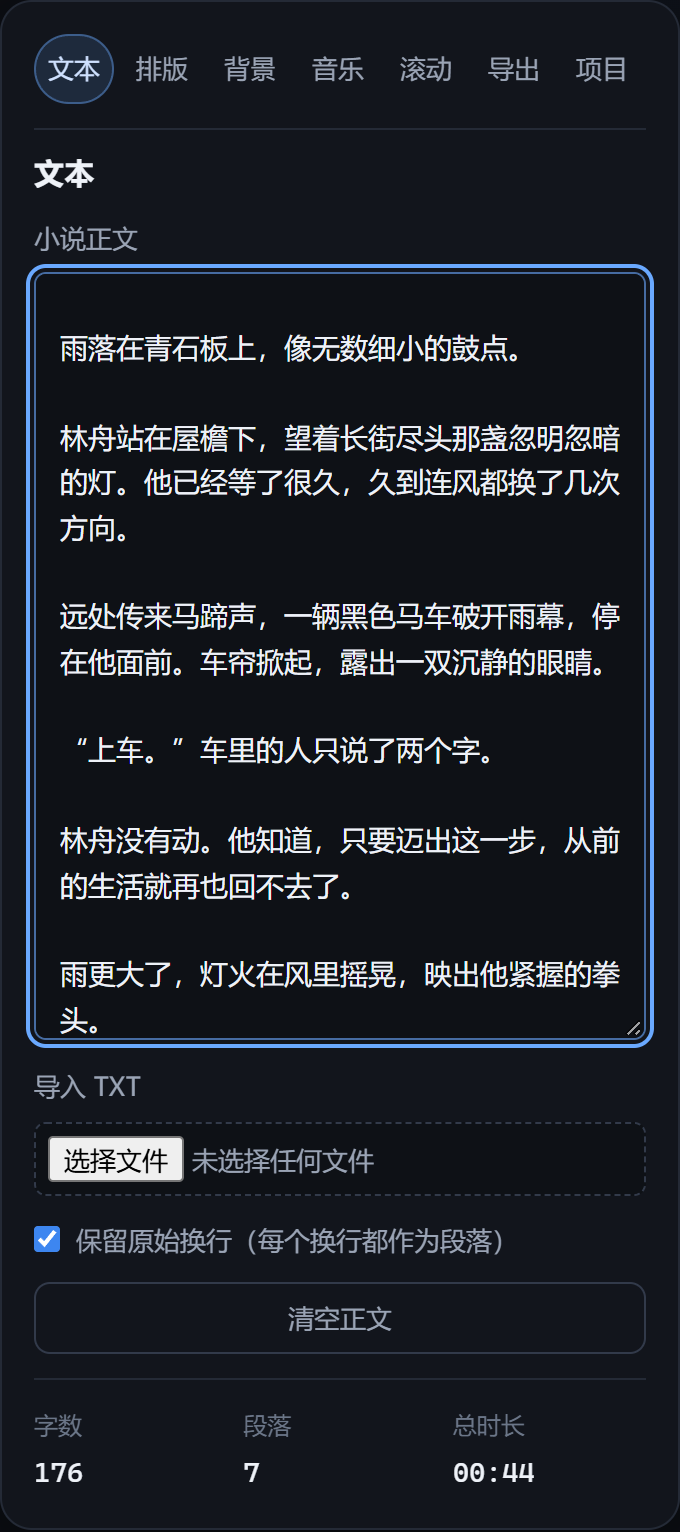
- Text Panel: After you paste the main text, the number of words, the number of paragraphs, and the total duration will be updated in real time.
2. Preview scrolling functionality
- Click “Play”, and the first line will appear from outside the bottom of the screen, after which the entire text will move upwards continuously.
- “Pause” keeps the current screen position; “Stop” returns the view to the beginning.
- By dragging the progress bar, you can jump to any desired time point, and the image will immediately be positioned at that corresponding location.
- The preview canvas only displays the final layout of the content; it does not include any watermark related to the domain name used for export. The watermark will only appear in the lower right corner of the final MP4 file.
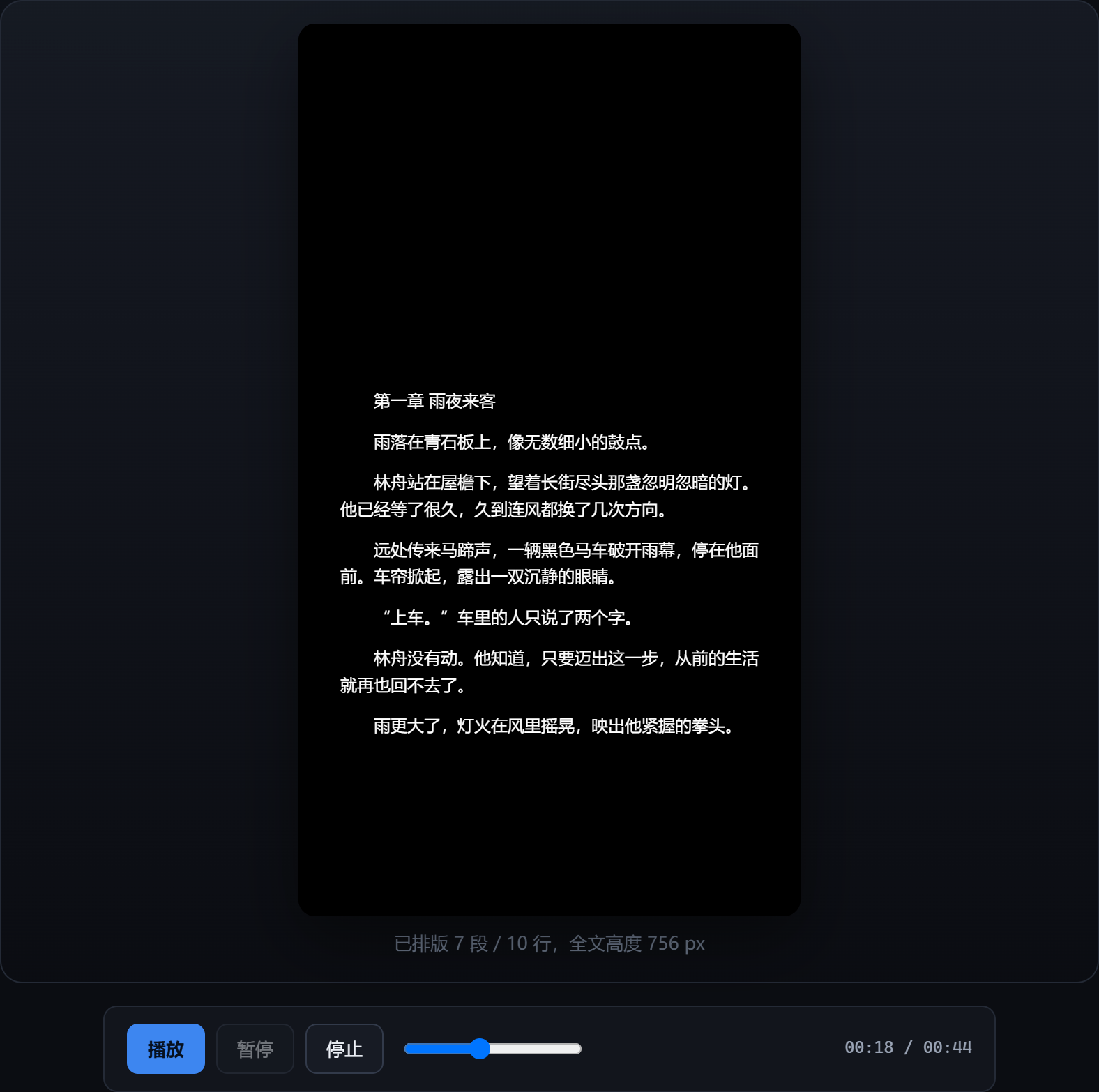
- Preview area: At the bottom of the canvas, you can directly play, pause, or stop the playback, or drag the progress bar to navigate to any specific time point.
3. Formatting, background, scrolling, and music
- The “Layout” panel allows you to adjust font type, font size, font weight, line height, character spacing, margins, indentation, alignment, color, as well as shadow and border settings.
- The “Background” panel supports the use of solid colors, gradients, and images. For images, it is possible to set options such as filling method, position, scale, blur level, brightness, mask effects, and vignetting.
- The "Scroll" panel allows you to switch between speed mode and duration mode, and you can also set the waiting time at the beginning and the pause period at the end.
- The "Music" panel allows you to import local audio files and adjust settings such as volume, start offset, loop mode, as well as fade-in and fade-out effects.
These four panels are all located on the left side, and you can switch between them using the labels at the top. Whenever you adjust any parameters, the preview will be updated in real time. The background image and music are only loaded locally within the browser and are not uploaded to any servers.
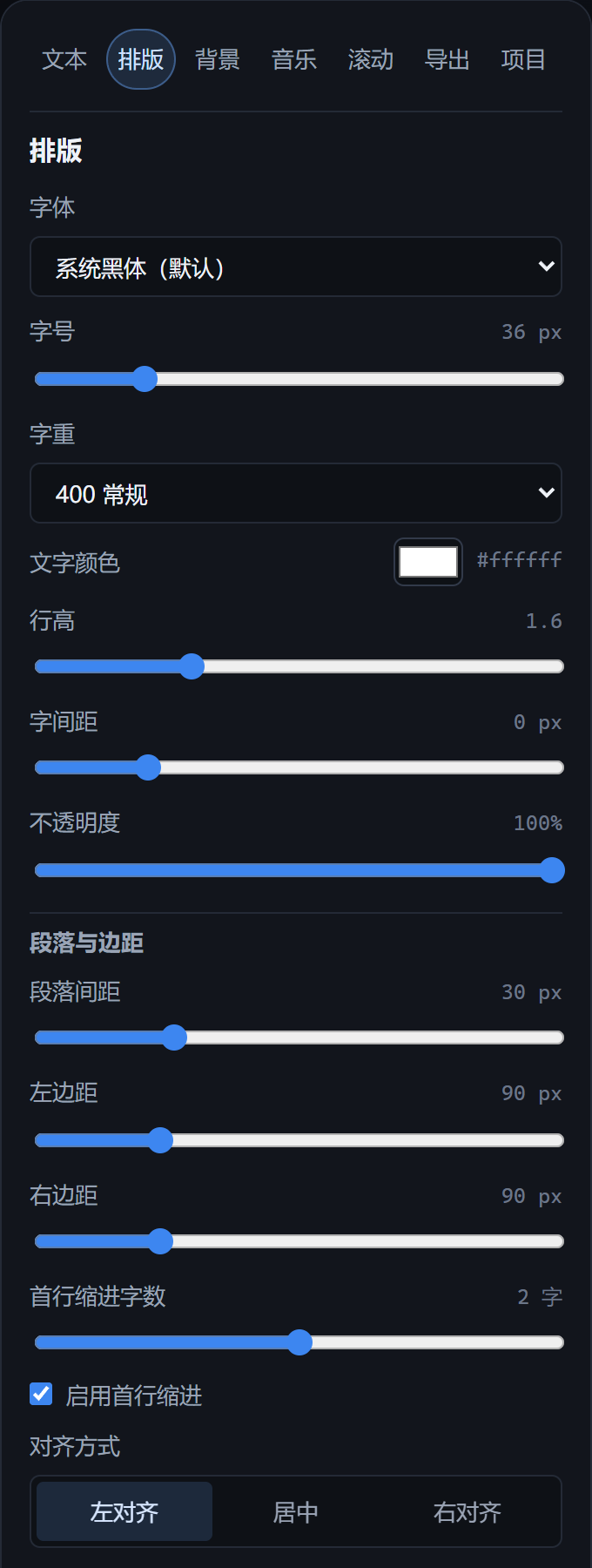
Layout: Font type, font size, line height, margins, indentation, and alignment.
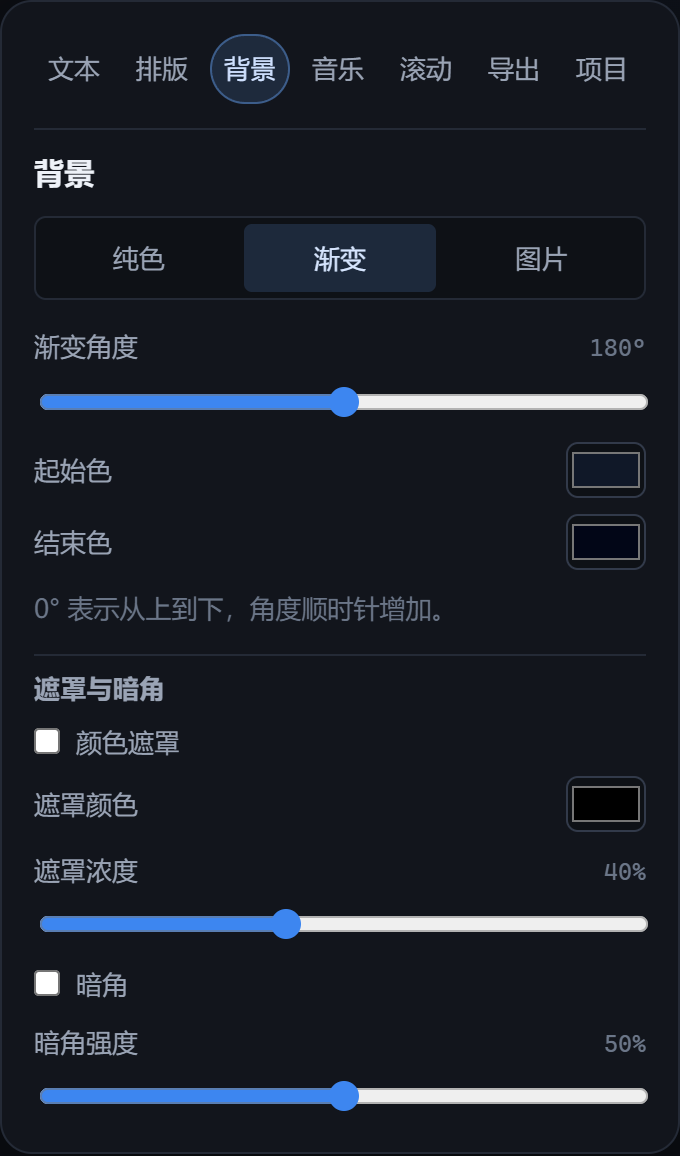
Background: Can be a solid color, a gradient, or an image, and it is also possible to apply masks and shadow effects.
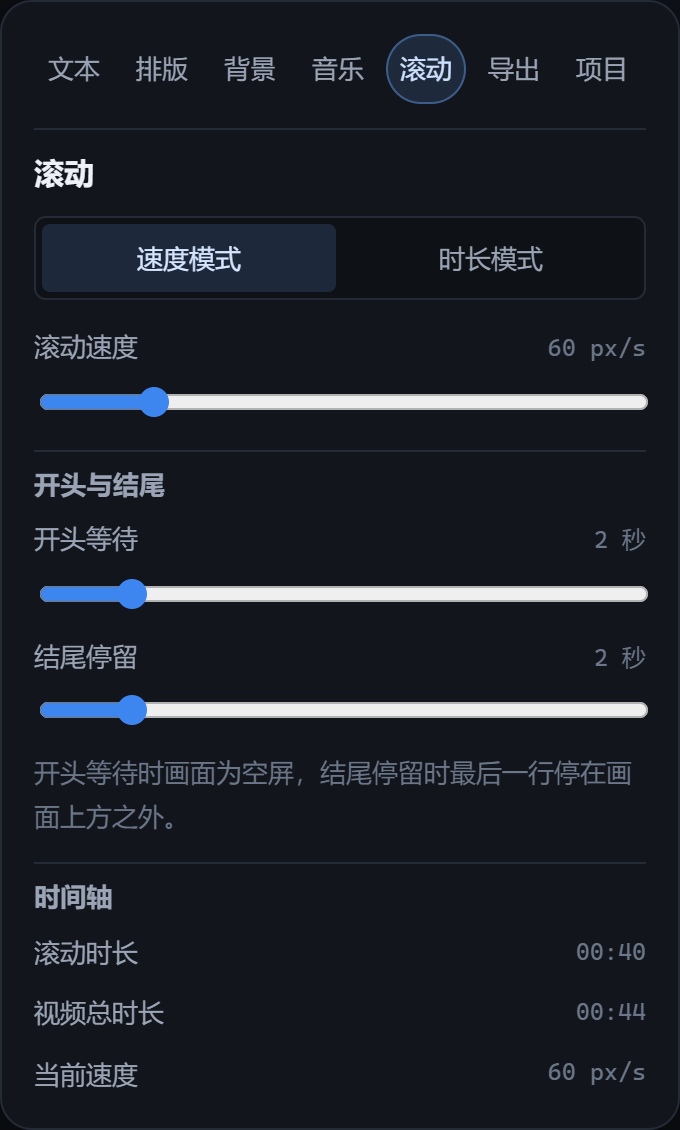
Scrolling: Available in both speed and duration mode, allowing you to control the waiting time at the beginning and the pause period at the end.
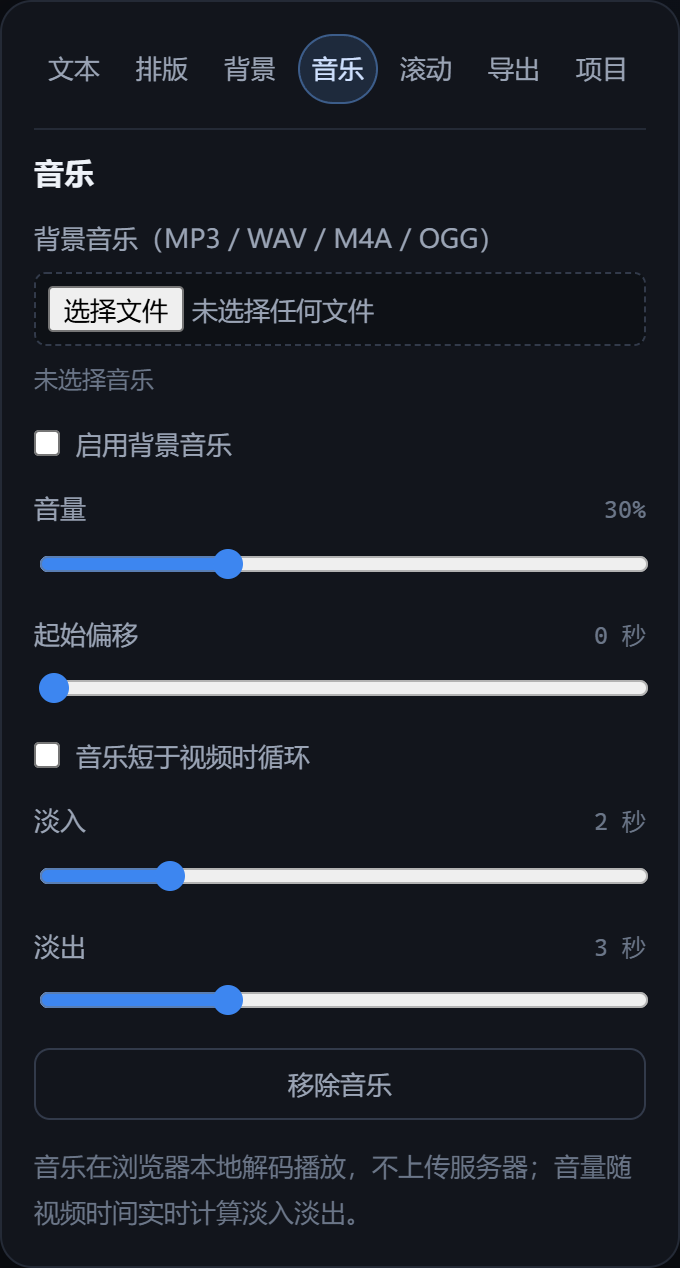
Music: Import local audio files and adjust settings such as volume, offset, as well as fade-in and fade-out effects.
4. Export the video
By default, the desktop version exports MP4 files in 1080×1920 resolution at 30 fps, using H.264 compression format and allowing the option of including AAC audio tracks. Browsers that support File System Access will render the video content while simultaneously writing it to disk, ensuring that long videos do not consume excessive memory; for browsers that do not support this feature, the video is first generated in memory before being downloaded. A watermark will be displayed in the lower right corner of the exported video files.novel.aiabus.comWatermarks are not displayed in the editor’s preview mode. The export panel will show the actual H.264 profile being used by the current browser, and the export process can be canceled at any time.
On mobile devices, the video resolution will automatically be reduced to 720×1280 at a frame rate of 24 fps. The length of each individual video file is limited to no more than 5 minutes, and the device’s capabilities will be utilized to determine whether 720P encoding is possible. During the export process, the system will request permission to maintain the screen on; once the export is complete, the system’s built-in sharing or saving functions will be used first. If these options fail, normal downloading methods will be employed as a backup. For older models or devices with insufficient memory, a prompt will appear advising users to use a computer for the export process.
If your phone still displays the message “720P H.264 encoding is not supported”, it means that the current browser or system’s encoder does not recognize the detected H.264 profile. The tool will attempt to use different settings such as High, Main, Baseline, and various Levels, and it may also try using software-based encoding methods. You can update your Chrome/Edge browser, try using a different device, or simply export the file to your computer.
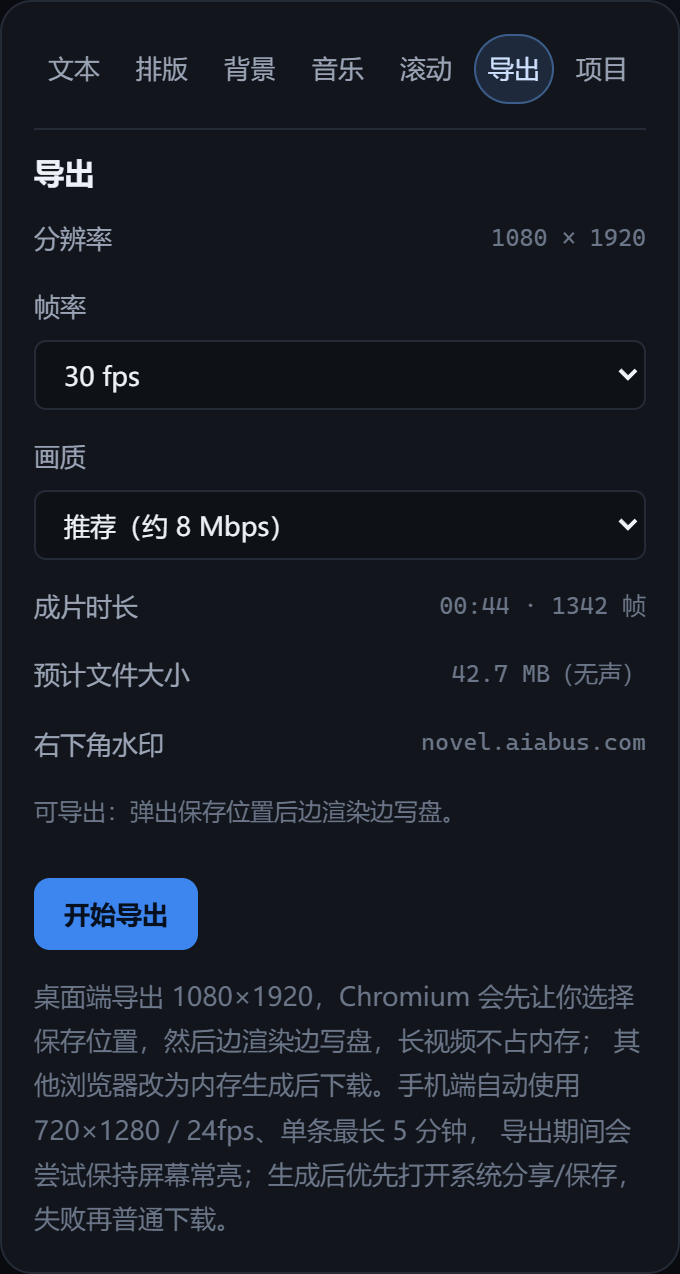
Export panel: Here, you can confirm the resolution, frame rate, image quality, estimated file size, as well as the watermark that will be displayed in the lower right corner of the resulting file.
5. Save the project, style templates, and backups.
- After the editing session is paused, the changes will be automatically saved to the local browser’s IndexedDB. You can restore the previous state of your project by refreshing the browser or restarting it; you can also manually save the changes in the “Projects” panel.
- The “Project” panel allows you to create new projects, rename them, open them, or delete them. When a project is deleted, any media materials that are only used by that project will be reclaimed.
- The “Style Template” only saves settings related to formatting, background styles, scrolling options, music parameters, and export options; it does not retain the actual text content, background images, or music files. When the template is applied, the current text and existing materials will be preserved.
- "Exporting a ZIP backup" includes the project configuration and media files, but does not contain any style templates. Changing browsers or clearing site data will result in the loss of local content; therefore, it is essential to regularly export backups for important projects.
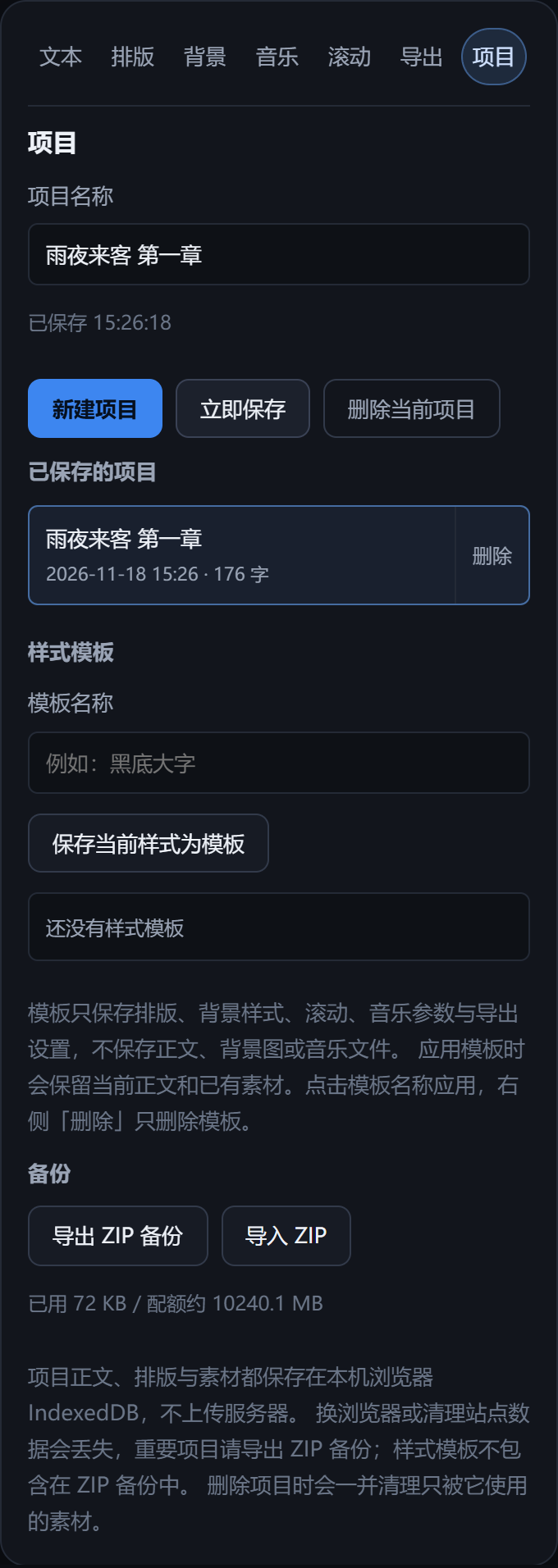
- Project Panel: The project list, style templates, and ZIP backups are all managed here.
Frequently Asked Questions
Why doesn’t the first line appear immediately?
To match the visual experience provided by the subtitles at the end of the video, there is a short waiting period at the beginning, during which the text appears below the bottom edge of the screen. You can set the “Initial Waiting Time” to 0 seconds in the “Scrolling” settings panel.
Will mixing Chinese and English characters cause word segmentation issues?
In Chinese, text is automatically wrapped word by word based on the available screen width. In English, words are kept intact whenever possible; only when a word exceeds the maximum width of a line will it be split into multiple parts.
Why is the exported video different from the preview version?
The preview version is displayed on a smaller canvas, while during the export process, the same formatting settings are applied to an image with dimensions of 1080×1920 or 720×1280, and the image is redrawn frame by frame at the target frame rate. The watermark is only added during the export step. The font size, margins, and settings related to the scrolling timeline remain unchanged throughout the process.
What should I do if my phone displays a message stating that “720P H.264 encoding is not supported”?
First, update your browser and try again. If that doesn’t work, use the built-in browser of your device or another mobile phone to verify the issue. This message indicates that the encoder on your current device has not passed the H.264 compatibility check. The problem is not related to the text content or media files themselves; the project is still stored in your local browser. You can export it as a ZIP file and continue working on it on your computer.